If you’re working with industrial automation, you already know how critical a smooth PLC setup is—especially when it comes to the Modicon M340 PLC. Misconfigurations here can chew up valuable production time and cause headaches on your CNC lines. That’s why mastering configuring Modicon M340 PLC isn’t just a nice-to-have; it’s a must-have skill for any automation engineer or technician looking to streamline their operations.
In this guide, we’ll cut straight to the essentials of hardware setup, software configuration with EcoStruxure Control Expert, and network integration—with practical steps to get your M340 PLC up and running seamlessly on your CNC machines. Ready to eliminate those configuration errors and boost uptime? Let’s dive in!
Understanding the Modicon M340 PLC Key Components and Capabilities
Are you wondering what makes the Modicon M340 PLC stand out in industrial automation, especially for CNC applications? Let’s break down its core features and why it’s a favorite for high-performance control systems.
Core Features of the M340 PLC
The Modicon M340 offers flexible processor modules tailored to fit various control needs. You’ll find CPU models that balance processing speed and memory capacity, ensuring smooth execution of complex CNC programs. The system supports different rack types—from compact setups to expanded racks—allowing easy scaling as your operation grows.
I/O Modules and Memory Options
The M340 shines with its extensive range of I/O modules, including discrete, analog, and specialty modules that can handle everything from standard sensors to advanced motion control feedback devices. What really powers multi-axis CNC machines is its high-density I/O capability, enabling precise real-time control across multiple axes without compromise.
Additionally, modular memory options offer flexible storage for user programs, data logging, and rapid execution, so you won’t hit a bottleneck even in demanding production scenarios.
How the M340 Stacks Up for CNC Compared to Other PLCs
When it comes to CNC, speed and real-time communication are non-negotiable. The M340 stands out with:
- Fast processing speeds that keep your machining smooth and precise.
- Built-in Ethernet integration for high-speed network communication, essential for coordinating multiple CNC devices in hybrid systems.
- Scalability that lets you expand from simple single-axis setups to complex multi-axis CNC clusters without swapping platforms.
Supporting Multi-axis CNC Control
The M340’s architecture is designed for CNC’s tough demands. Its ability to support high-density I/O means you can connect numerous inputs and outputs—like spindle controls, encoders, actuators, and sensors—all in one system.
This not only simplifies wiring but also improves synchronization, critical for tasks like tool changes, spindle speed regulation, and coordinated axis motion.
If you’re ready to get hands-on, we’ll guide you through the essentials: hardware checklist, software setup, and the safest way to start configuring your M340 PLC for top-notch CNC control. Ready? Let’s dive in!
Essential Prerequisites Tools Software and Safety Before Configuration
Before diving into Modicon M340 PLC setup, make sure you’ve got the basics covered: hardware, software, and safety.
Hardware Checklist
- Processor modules: Pick the right BMXP34 or other CPU variants based on your CNC needs.
- Cables and connectors: Have sturdy power cables and communication lines ready—check that connectors match your rack slots.
- Power supplies and racks: Ensure your power supply is stable and compatible, and your rack supports the number of I/O modules you plan to use.
Software Setup
- Install EcoStruxure Control Expert: This is your key programming tool. Confirm your PC meets the system requirements and you have a valid license.
- System requirements: Windows 10 or later, sufficient RAM (8GB+), and enough disk space for projects and backups.
- Licensing: Activate your software license before starting your project to avoid interruptions.
Safety Protocols
- Grounding: Proper grounding is critical to protect your PLC and CNC equipment from electrical faults.
- ESD prevention: Use wrist straps and work on anti-static mats when handling sensitive modules to prevent electrostatic damage.
- Standards compliance: Follow IEC standards relevant to industrial control systems to meet US safety and quality benchmarks.
Verify Firmware Versions
Before connecting CNC-specific modules, double-check that all firmware is up to date. Schneider Electric frequently releases updates that fix bugs and improve performance—essential for smooth CNC motion control and Ethernet integration. Use Schneider’s firmware tools or EcoStruxure Control Expert’s update feature to verify and install the latest versions.
By ticking off these prerequisites, you set a solid foundation for your Modicon M340 PLC configuration and avoid costly delays or troubleshooting down the line.
Step by Step Hardware Installation and Rack Assembly
When setting up your Modicon M340 PLC, a clean hardware installation is key for smooth operation. Here’s how to get started with your rack assembly and module installation.
Rack Mounting and Power Supply Integration
- Choose a rack that fits your workspace and supports the M340 processor and I/O modules you need.
- Securely mount the rack on a stable surface, avoiding any vents or heat sources.
- Install the power supply module in the designated slot according to Schneider’s guidelines to ensure consistent power.
- Double-check all connectors to make sure power cables are firmly seated and free from damage.
Module Insertion and Slot Ordering
- Insert the processor module (CPU) first, typically in the first slot on the rack.
- Add I/O modules next, including discrete digital and analog inputs/outputs relevant to your CNC sensors and actuators.
- Follow the slot ordering rules from the Modicon M340 manual — some modules need to be placed in specific slots for proper communication and power distribution.
- For advanced tasks, such as motion control in CNC, add expert modules like specialty motion control or communication cards.
Wiring Guidelines for Reliable Connections
- Use the correct terminal blocks and connectors designed for M340 racks, keeping connections tight and secure.
- Connect CNC sensors and actuators carefully, noting input/output types (digital vs. analog).
- Employ shielded cables and proper grounding to reduce electrical noise, which is especially important in CNC environments with motors and drives.
- Label wires clearly and keep wiring neat to simplify future troubleshooting or upgrades.
Troubleshooting Common Installation Issues
- If a module won’t insert easily, don’t force it—check for alignment or obstructions.
- Use LED indicators on modules to spot faults quickly. A red or blinking light usually signals connection or power issues.
- Make sure the rack’s backplane connectors are clean and free from dust or damage.
- If the CPU doesn’t communicate after installation, verify slot order and firmware compatibility with your system.
Following these steps ensures your Modicon M340 hardware is correctly installed and ready for smooth CNC control. Keep Schneider’s hardware manuals handy during setup to cross-check slot assignments and wiring specs.
Software Configuration in EcoStruxure Control Expert From Project Creation to Download
Setting up your Modicon M340 PLC software starts with EcoStruxure Control Expert, Schneider Electric’s go-to programming tool. First, create a new project using the New Project Wizard. Here, you pick your exact M340 processor model and define your rack topology, making sure the system matches your hardware setup perfectly.
Next up is the device tree setup. This means adding all the I/O modules in the right slots and checking the topology for any errors. Proper validation here prevents communication issues later in the process.
For your initial tests, you’ll want to generate a simple program. You can use basic ladder logic or a function block diagram to embed essential CNC motion commands. This lets you test axis movements, spindle control, and other CNC functions before going full scale.
Once your program is ready, run the build and analyze step. This compiles your project and highlights any errors or warnings so you can fix issues early.
Finally, the download process sends your program to the M340 PLC. You can choose between USB or Ethernet transfer modes depending on your setup. After downloading, switch the PLC between RUN and STOP modes to start or pause your control program as needed.
This straightforward workflow in EcoStruxure Control Expert makes configuring your M340 fast and reliable, giving you a smooth path from project setup to CNC operation.
Network Configuration Setting Up Ethernet Modbus and Fieldbus for CNC Connectivity
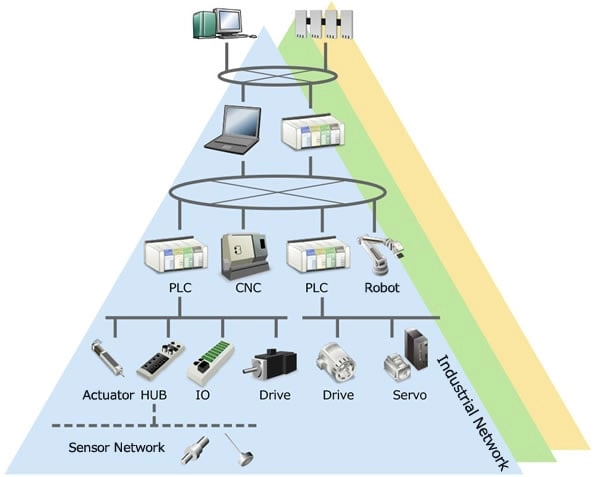
When setting up your Modicon M340 PLC for CNC applications, getting the network right is crucial. The M340 supports Ethernet, Modbus, and several fieldbus options, making it versatile for connecting multiple CNC devices and controllers.
Ethernet Port Basics
Start by configuring the Ethernet ports within EcoStruxure Control Expert. You’ll need to:
- Assign static IP addresses or use DHCP depending on your network setup.
- Set the subnet mask and default gateway to match your plant’s network infrastructure.
- Use Control Expert to easily manage these settings under the network configuration tab.
Modbus Integration for CNC
Legacy CNC machines often use Modbus protocols. The M340 supports both:
- Serial Modbus RTU for traditional RS-485 communication.
- Modbus TCP for Ethernet-based communication, helping modern connect legacy devices.
Make sure to define the proper communication parameters (baud rate, parity, etc.) in Control Expert and map your Modbus registers correctly to ensure smooth CNC data exchange.
Advanced Fieldbus Options
For more complex CNC setups needing multi-axis control and faster data, you can use:
- CANopen bus integration, popular in motion control setups, to sync axes and sensors.
- EGD (Ethernet Global Data) for quick data exchange between multiple PLCs.
- Modbus Plus proxies when connecting several M340 PLCs, allowing scalable network expansion.
Configuring Ethernet IP for Hybrid CNC Systems
If your CNC system combines different protocols, configuring Ethernet IP on the M340 is a smart move. This allows real-time axis synchronization and cross-PLC communication. In Control Expert, enable Ethernet IP and use sample code snippets for motion commands to get your axes tightly synced.
Security Essentials
With networks opening up for Industrial IoT, security can’t be an afterthought:
- Set up firewall rules on the network to limit access to the M340 PLC.
- Use VLANs to separate your CNC control network from the rest of your plant network, reducing risk.
- Regularly update PLC firmware to guard against vulnerabilities.
Following these guidelines helps ensure your M340 runs a reliable CNC network setup that’s secure and ready for the demanding U.S. industrial environment.
Programming Fundamentals Addressing Data Mapping and CNC Specific Logic
When working with the Modicon M340 PLC, understanding memory addressing is key. You’ll need to map inputs, outputs, and internal bits properly—especially when you expand your I/O with extra modules. Proper relocation of addresses ensures your CNC system communicates smoothly without conflicts.
For data types and functions, the M340 supports timers, counters, and Read Var blocks. These tools are essential when handling real-time CNC feedback like spindle speeds or positioning signals. Using Read Var blocks, you can quickly access live data from sensors and adjust your process accordingly.
A practical CNC example is linking M340 registers directly to a G-code interpreter. This lets you control spindle speed or axis movements by translating G-code commands into precise register values. This tight coupling simplifies motion control and improves responsiveness.
To get the best out of your setup, focus on minimizing scan time. Optimizing your ladder logic or function block diagrams helps your system handle high-speed machining without lag. Keep your routines simple and avoid unnecessary loops to ensure fast cycle times and consistent machine performance.
Testing Debugging and Optimization for Reliable Performance
When setting up your Modicon M340 PLC, testing and debugging are key to smooth CNC operation. Here’s how I approach it using EcoStruxure Control Expert and Unity Pro tools.
Simulation Mode for Offline Testing
Before going live, I always run a simulation in Control Expert. This lets me:
- Test ladder logic or function blocks without connecting actual hardware
- Force inputs and outputs to simulate real CNC sensors and actuators
- Perform dry runs to catch errors or unexpected behavior early
This step saves time and prevents costly downtime on the shop floor.
Online Diagnostics for Real-Time Monitoring
Once the program is downloaded and running, I monitor the system with Unity Pro diagnostics tools:
- Check fault tables to spot CNC-specific errors like sensor failures or communication hiccups
- Track I/O status and CPU health live
- Use diagnostic blocks for quick troubleshooting of communication and module issues
This ongoing monitoring is crucial to maintain reliable CNC performance.
Performance Tuning for Optimal Operation
To keep your M340 running efficiently, I adjust these settings:
- Rack power budgets to ensure modules get stable power and avoid resets
- Module priorities in the processor to optimize response times for critical CNC axes
- Review scan times and tweak program scope to minimize delays during machining
All these adjustments help improve cycle times and responsiveness on demanding multi-axis CNC projects.
Benchmark Cycle Times with DouMiCNC Setups
If you’re working with DouMiCNC systems, expect improved benchmark cycle times compared to stock M340 configurations thanks to:
- Optimized I/O mappings tailored for CNC tool changers and spindles
- Preconfigured motion commands that reduce command latency
- Efficient Ethernet IP setups syncing multiple axes smoothly
Regular testing after any update or hardware change ensures your Modicon M340 stays dialed in for peak CNC performance.
Common Pitfalls and Troubleshooting Quick Fixes for M340 Configuration Errors
When working with the Modicon M340 PLC, a few common issues can slow down your setup or interrupt CNC operations. Here’s what I’ve seen often and how to fix them fast:
IP Conflicts
- Make sure every device on your network has a unique IP address. Duplicate IPs cause communication timeouts and network drops.
- Use EcoStruxure Control Expert to check and adjust IP settings quickly. If DHCP isn’t used, set static IPs carefully.
Module Recognition Failures
- Confirm modules are correctly seated in their slots. Loose or misaligned modules won’t show up in the device tree.
- Verify the rack topology in your project matches the actual hardware setup. Mismatched rack or module types lead to recognition errors.
- Update your BMXP34 processor firmware to the latest version compatible with your I/O modules, especially for CNC-specific hardware.
Communication Timeouts
- Check cable quality and shielding. Poor wiring causes intermittent data loss, affecting CNC motion control.
- Validate communication settings for protocols like Modbus RTU or Ethernet IP in the software. Make sure baud rates and node addresses match your devices.
Advanced Diagnostics with Schneider Software
For lingering Modbus or network issues, use Schneider’s diagnostic tools:
- Unity Pro diagnostics can pinpoint specific error codes.
- The Modbus analyzer helps track down protocol mismatches and data errors across your CNC network.
- Review fault tables regularly to stay ahead of potential failures.
Case Study Resolving Rack Overheating in CNC Production
In one production line using M340 racks for multi-axis CNC controls, overheating caused unexpected shutdowns. Here’s how they fixed it:
- Installed additional cooling fans on the rack enclosure.
- Checked power supply ratings and distributed module loading evenly to avoid hot spots.
- Updated firmware to include enhanced power management features recommended by Schneider.
- Implementing these steps reduced downtime and improved reliability significantly.
Addressing these common issues early keeps your Modicon M340 running smooth and your CNC operations on track.
Integrating Modicon M340 with DouMiCNC Systems Elevate Your Automation
When pairing the Modicon M340 with DouMiCNC systems, you’re stepping into a smart, streamlined setup designed for U.S. manufacturers who need reliable, scalable CNC automation. The good news? Schneider Electric offers pre-configured M340 templates tailored for DouMiCNC routers. This means faster deployment and less hassle—just plug and play, especially useful if you’re running multi-tool changers or complex machining setups.
Custom Synergies for Smooth CNC Operations
- Pre-built M340 project templates aligned with DouMiCNC hardware
- Plug-and-play support for multi-axis and multi-tool changer control
- Ready-made ladder logic and Ethernet IP configurations optimized for CNC workflows
Scalability for Growing CNC Demands
If you need more performance or redundancy, the M340H (High availability) series is the natural step up. It’s built to handle CNC clusters where uptime is critical—perfect for bigger U.S. manufacturing plants focusing on continuous production without downtime.
- Expandable racks for more I/O modules
- Redundant power supplies and CPUs for failover protection
- Seamless integration with existing M340 setups and DouMiCNC software
Handy Resources for U.S. Users
To help you get started or troubleshoot, Schneider Electric and DouMiCNC provide:
- Firmware packs tailored for DouMiCNC M340 modules
- Access to a dedicated support portal with manuals, FAQs, and direct contact
- Software updates and application notes targeted at U.S. CNC industry standards
Leveraging these tools and integration options will put your CNC automation on a faster track, boosting productivity with less guesswork or downtime.


 by
by