Если вы работаете с промышленной автоматизацией, вы уже знаете, насколько важна плавная настройка ПЛК, особенно когда речь идет о ПЛК Modicon M340.. Неправильные конфигурации здесь могут съесть ценное производственное время и вызвать головную боль на ваших линиях с ЧПУ.. Вот почему освоение настройки ПЛК Modicon M340 — это не просто приятная вещь.; это обязательный навык для любого инженера или техника по автоматизации, стремящегося оптимизировать свою работу..
В этом руководстве, мы сразу перейдем к основам настройки оборудования, настройка программного обеспечения с помощью EcoStruxure Control Expert, и сетевая интеграция — с практическими шагами по настройке и бесперебойной работе ПЛК M340 на станках с ЧПУ.. Готовы устранить эти ошибки конфигурации и увеличить время безотказной работы.? Давайте погрузимся!
Общие сведения о ключевых компонентах и возможностях ПЛК Modicon M340
Вам интересно, что отличает ПЛК Modicon M340 в области промышленной автоматизации?, специально для приложений с ЧПУ? Давайте разберем его основные функции и объясним, почему он является фаворитом для высокопроизводительных систем управления..
Основные характеристики ПЛК M340
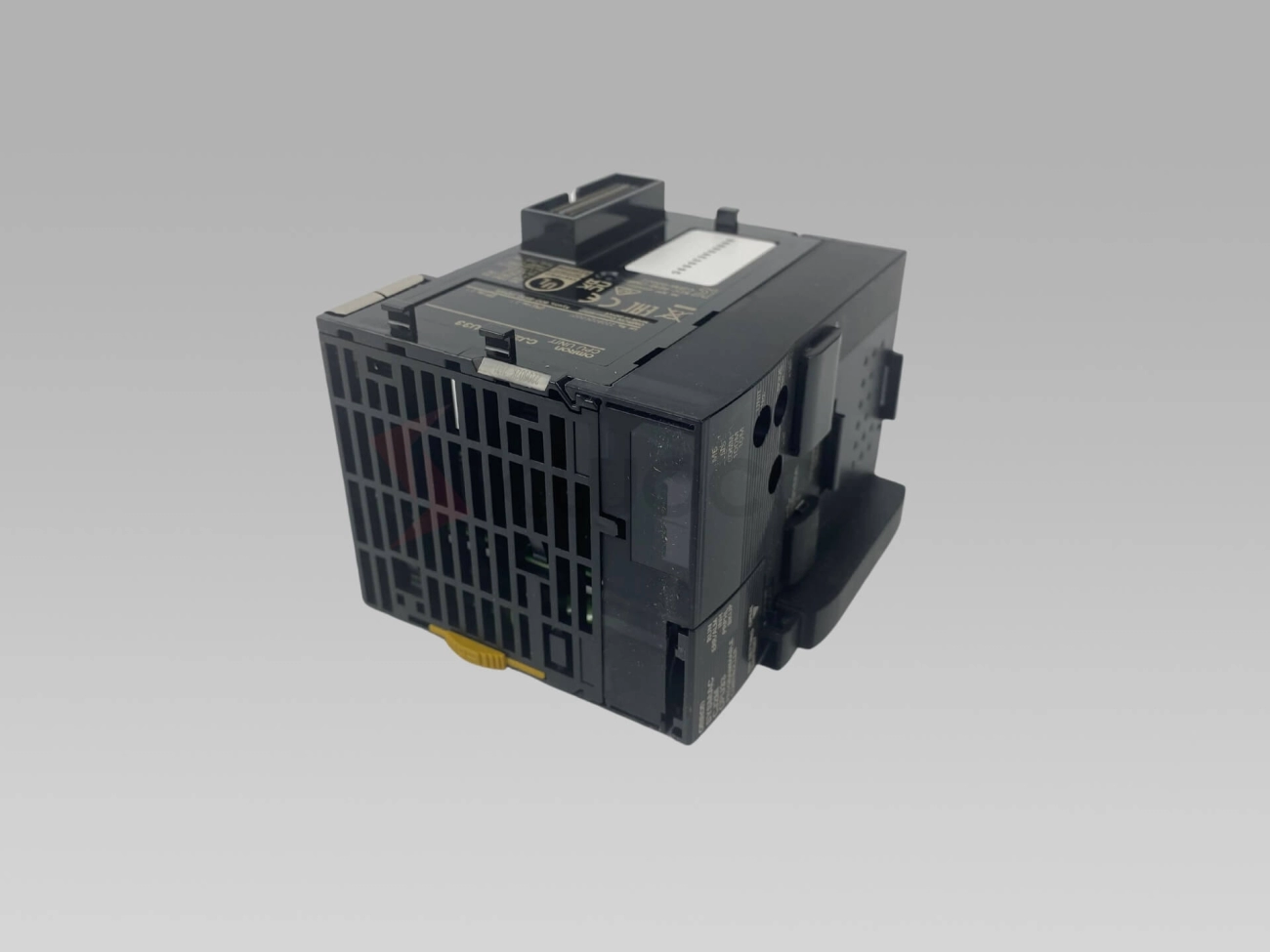
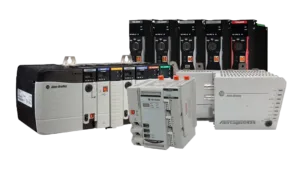
Modicon M340 предлагает гибкие процессорные модули, адаптированные к различным потребностям управления.. Вы найдете модели процессоров, которые обеспечивают баланс между скоростью обработки и объемом памяти., обеспечение плавного выполнения сложных программ ЧПУ. Система поддерживает различные типы стоек — от компактных до расширенных — что позволяет легко масштабировать по мере роста вашей деятельности..
Модули ввода-вывода и варианты памяти
M340 отличается обширным набором модулей ввода-вывода., в том числе дискретный, аналоговый, и специальные модули, которые могут обрабатывать все: от стандартных датчиков до усовершенствованных устройств обратной связи для управления движением.. Что действительно обеспечивает многоосные станки с ЧПУ, так это возможность ввода-вывода с высокой плотностью ввода-вывода., обеспечение точного управления в реальном времени по нескольким осям без компромиссов.
Кроме того, варианты модульной памяти обеспечивают гибкое хранение пользовательских программ, регистрация данных, и быстрое исполнение, поэтому вы не столкнетесь с узкими местами даже в сложных производственных сценариях.
Преимущества M340 для ЧПУ по сравнению с другими ПЛК
Когда дело доходит до ЧПУ, скорость и связь в реальном времени не подлежат обсуждению. M340 выделяется:
- Высокая скорость обработки, обеспечивающая плавность и точность обработки..
- Встроенная интеграция Ethernet для высокоскоростной сетевой связи., необходим для координации нескольких устройств с ЧПУ в гибридных системах.
- Масштабируемость, которая позволяет вам расширяться от простых одноосных установок до сложных многоосных кластеров с ЧПУ без замены платформ..
Поддержка многоосевого управления ЧПУ
Архитектура M340 разработана с учетом жестких требований ЧПУ.. Его способность поддерживать высокую плотность ввода-вывода означает, что вы можете подключать множество входов и выходов, например, элементы управления шпинделем., кодеры, приводы, и датчики — все в одной системе.
Это не только упрощает проводку, но и улучшает синхронизацию., критично для таких задач, как смена инструментов, регулирование скорости шпинделя, и скоординированное движение оси.
Если вы готовы приступить к делу, мы проведем вас через самое необходимое: контрольный список оборудования, настройка программного обеспечения, и самый безопасный способ начать настройку ПЛК M340 для первоклассного управления ЧПУ.. Готовый? Давайте погрузимся!
Необходимые предварительные условия. Инструменты. Программное обеспечение и безопасность перед настройкой.

Прежде чем приступить к настройке ПЛК Modicon M340, убедитесь, что вы освоили основы: аппаратное обеспечение, программное обеспечение, и безопасность.
Контрольный список оборудования
- Процессорные модули: Выберите подходящий BMXP34 или другие варианты ЦП в соответствии с потребностями вашего ЧПУ..
- Кабели и разъемы: Подготовьте прочные силовые кабели и линии связи — убедитесь, что разъемы соответствуют слотам вашей стойки..
- Блоки питания и стойки: Убедитесь, что ваш источник питания стабилен и совместим, и ваша стойка поддерживает то количество модулей ввода-вывода, которое вы планируете использовать..
Настройка программного обеспечения
- Установите EcoStruxure Control Expert: Это ваш ключевой инструмент программирования. Убедитесь, что ваш компьютер соответствует системным требованиям и у вас есть действующая лицензия..
- Системные требования: Окна 10 или позже, достаточный объем оперативной памяти (8ГБ+), и достаточно места на диске для проектов и резервных копий.
- Лицензирование: Активируйте лицензию на программное обеспечение перед запуском проекта, чтобы избежать перерывов в работе..
Протоколы безопасности
- Заземление: Правильное заземление имеет решающее значение для защиты вашего оборудования ПЛК и ЧПУ от электрических неисправностей..
- предотвращение электростатического разряда: Используйте браслеты и работайте на антистатических ковриках при работе с чувствительными модулями, чтобы предотвратить электростатическое повреждение..
- Соответствие стандартам: Следуйте стандартам IEC, применимым к системам промышленного контроля, чтобы соответствовать стандартам безопасности и качества США..
Проверьте версии прошивки
Перед подключением модулей, предназначенных для ЧПУ, еще раз проверьте, что вся прошивка обновлена. Schneider Electric часто выпускает обновления, которые исправляют ошибки и повышают производительность, что важно для плавного управления движением с ЧПУ и интеграции Ethernet.. Используйте инструменты встроенного ПО Schneider или функцию обновления EcoStruxure Control Expert для проверки и установки последних версий..
Отметив эти предварительные условия, вы закладываете прочную основу для конфигурации вашего ПЛК Modicon M340 и избегаете дорогостоящих задержек или устранения неполадок в дальнейшем.
Пошаговая установка оборудования и сборка стойки
При настройке ПЛК Modicon M340, чистая установка оборудования является ключом к бесперебойной работе. Вот как можно приступить к сборке стойки и установке модулей..
Монтаж в стойке и интеграция источника питания
- Выберите стойку, которая соответствует вашему рабочему пространству и поддерживает процессор M340 и необходимые вам модули ввода-вывода..
- Надежно закрепите стойку на устойчивой поверхности., избегая любых вентиляционных отверстий или источников тепла.
- Установите модуль питания в назначенный слот в соответствии с рекомендациями Schneider, чтобы обеспечить стабильное питание..
- Дважды проверьте все разъемы, чтобы убедиться, что кабели питания надежно закреплены и не повреждены..
Установка модулей и порядок слотов
- Вставьте модуль процессора (Процессор) первый, обычно в первом слоте стойки.
- Далее добавьте модули ввода/вывода, включая дискретные цифровые и аналоговые входы/выходы, соответствующие вашим датчикам и исполнительным устройствам с ЧПУ..
- Следуйте правилам заказа слотов, указанным в руководстве Modicon M340 — некоторые модули необходимо размещать в определенных слотах для правильной связи и распределения питания..
- Для продвинутых задач, например, управление движением в ЧПУ, добавлять экспертные модули, такие как специальные модули управления движением или карты связи..
Рекомендации по подключению для надежных соединений
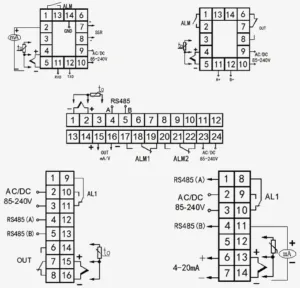
- Используйте правильные клеммные колодки и разъемы, предназначенные для стоек M340., сохранение герметичности и надежности соединений.
- Тщательно подключайте датчики и исполнительные механизмы ЧПУ., отмечая типы ввода/вывода (цифровой против. аналоговый).
- Используйте экранированные кабели и правильное заземление для снижения электрических помех., что особенно важно в средах ЧПУ с двигателями и приводами.
- Четко маркируйте провода и следите за их аккуратностью, чтобы упростить поиск и устранение неисправностей или модернизацию в будущем..
Устранение распространенных проблем при установке
- Если модуль не вставляется легко, не прилагайте усилий — проверьте выравнивание или наличие препятствий.
- Используйте светодиодные индикаторы на модулях для быстрого обнаружения неисправностей.. Красный или мигающий индикатор обычно сигнализирует о проблемах с подключением или питанием..
- Убедитесь, что разъемы объединительной панели стойки чистые, на них нет пыли и повреждений..
- Если ЦП не обменивается данными после установки, проверьте порядок слотов и совместимость прошивки с вашей системой.
Выполнение этих шагов гарантирует, что ваше оборудование Modicon M340 будет правильно установлено и готово к бесперебойному управлению с ЧПУ.. Во время установки держите под рукой руководства по аппаратному обеспечению Schneider, чтобы сверять назначения слотов и характеристики проводки..
Конфигурация программного обеспечения в EcoStruxure Control Expert: от создания проекта до загрузки
Настройка программного обеспечения ПЛК Modicon M340 начинается с EcoStruxure Control Expert., Инструмент программирования Schneider Electric. Первый, создайте новый проект с помощью мастера создания новых проектов. Здесь, вы выбираете точную модель процессора M340 и определяете топологию стойки, убедиться, что система идеально соответствует настройке вашего оборудования.
Далее настройка дерева устройств.. Это означает установку всех модулей ввода-вывода в нужные слоты и проверку топологии на наличие ошибок.. Правильная проверка здесь предотвращает проблемы со связью на более поздних этапах процесса..
Для ваших первоначальных тестов, вам нужно создать простую программу. Вы можете использовать базовую релейную логику или функциональную блок-схему для внедрения основных команд движения ЧПУ.. Это позволяет тестировать движения осей., управление шпинделем, и другие функции ЧПУ перед полномасштабным внедрением.
Как только ваша программа будет готова, запустите этап сборки и анализа. Это скомпилирует ваш проект и выделит все ошибки или предупреждения, чтобы вы могли исправить проблемы на ранней стадии..
Окончательно, процесс загрузки отправляет вашу программу в ПЛК M340. Вы можете выбрать режим передачи данных USB или Ethernet в зависимости от ваших настроек.. После загрузки, переключайте ПЛК между режимами RUN и STOP, чтобы при необходимости запустить или приостановить программу управления..
Этот простой рабочий процесс в EcoStruxure Control Expert делает настройку вашего M340 быстрой и надежной., обеспечивая вам плавный путь от настройки проекта до работы с ЧПУ.
Конфигурация сети Настройка Ethernet Modbus и Fieldbus для подключения ЧПУ
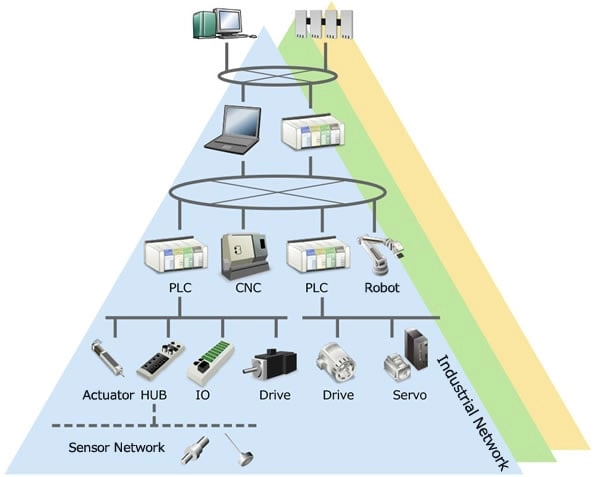
При настройке ПЛК Modicon M340 для приложений с ЧПУ, правильная настройка сети имеет решающее значение. M340 поддерживает Ethernet., Модбус, и несколько вариантов полевой шины, что делает его универсальным для подключения нескольких устройств и контроллеров с ЧПУ..
Основы порта Ethernet
Начните с настройки портов Ethernet в EcoStruxure Control Expert.. Вам нужно будет:
- Назначайте статические IP-адреса или используйте DHCP в зависимости от настроек вашей сети..
- Установите маску подсети и шлюз по умолчанию в соответствии с сетевой инфраструктурой вашего предприятия..
- Используйте Control Expert, чтобы легко управлять этими настройками на вкладке конфигурации сети..
Интеграция Modbus для ЧПУ
Устаревшие станки с ЧПУ часто используют протоколы Modbus.. M340 поддерживает оба:
- Последовательный Modbus RTU для традиционной связи RS-485.
- Modbus TCP для связи на базе Ethernet, помогаем современным подключать устаревшие устройства.
Обязательно определите правильные параметры связи. (скорость передачи данных, паритет, и т. д.) в Control Expert и правильно сопоставьте регистры Modbus, чтобы обеспечить бесперебойный обмен данными с ЧПУ..
Расширенные параметры полевой шины
Для более сложных установок ЧПУ, требующих многоосного управления и более быстрых данных., ты можешь использовать:
- Интеграция с шиной CANopen, популярный в системах управления движением, для синхронизации осей и датчиков.
- ЭГДС (Глобальные данные Ethernet) для быстрого обмена данными между несколькими ПЛК.
- Прокси Modbus Plus при подключении нескольких ПЛК M340, возможность масштабируемого расширения сети.
Настройка Ethernet IP для гибридных систем ЧПУ
Если ваша система ЧПУ сочетает в себе разные протоколы, настройка Ethernet IP на M340 — разумный шаг. Это обеспечивает синхронизацию осей в реальном времени и связь между ПЛК.. Эксперт по контролю, включите Ethernet IP и используйте примеры фрагментов кода для команд движения, чтобы обеспечить тесную синхронизацию ваших осей..
Основы безопасности
Сети открываются для промышленного Интернета вещей, безопасность не может быть второстепенной мыслью:
- Настройте правила межсетевого экрана в сети, чтобы ограничить доступ к ПЛК M340..
- Используйте VLAN, чтобы отделить сеть управления ЧПУ от остальной сети вашего предприятия., снижение риска.
- Регулярно обновляйте прошивку ПЛК для защиты от уязвимостей..
Следование этим рекомендациям поможет обеспечить надежную настройку сети ЧПУ на вашем M340, безопасную и готовую к требовательным условиям США.. промышленная среда.
Основы программирования, связанные с отображением данных и специфической логикой ЧПУ
При работе с ПЛК Modicon M340, понимание адресации памяти является ключевым моментом. Вам нужно будет сопоставить входные данные, результаты, и внутренние биты правильно, особенно когда вы расширяете свой ввод-вывод с помощью дополнительных модулей.. Правильное перемещение адресов обеспечивает бесперебойную и безконфликтную работу вашей системы ЧПУ..
Для типов данных и функций, M340 поддерживает таймеры, счетчики, и читать блоки Var. Эти инструменты необходимы при обработке обратной связи от ЧПУ в реальном времени, такой как скорость шпинделя или сигналы позиционирования.. Использование блоков Read Var, вы можете быстро получить доступ к оперативным данным от датчиков и соответствующим образом скорректировать свой процесс.
Практический пример ЧПУ — подключение регистров M340 напрямую к интерпретатору G-кода.. Это позволяет вам контролировать скорость шпинделя или движения осей путем перевода команд G-кода в точные значения регистров.. Эта плотная связь упрощает управление движением и улучшает отзывчивость..
Чтобы получить максимальную отдачу от вашей установки, сосредоточьтесь на минимизации времени сканирования. Оптимизация лестничной логики или функциональных блок-схем помогает вашей системе справляться с высокоскоростной обработкой без задержек.. Сохраняйте простоту своих процедур и избегайте ненужных циклов, чтобы обеспечить быстрое время цикла и стабильную производительность машины..
Тестирование, отладка и оптимизация для обеспечения надежной производительности
При настройке ПЛК Modicon M340, тестирование и отладка являются ключом к бесперебойной работе ЧПУ. Вот как я подхожу к этому с помощью инструментов EcoStruxure Control Expert и Unity Pro..
Режим моделирования для автономного тестирования
Прежде чем выйти в эфир, Я всегда запускаю моделирование в Control Expert.. Это позволяет мне:
- Тестирование релейной логики или функциональных блоков без подключения реального оборудования
- Принудительные входы и выходы для имитации реальных датчиков и исполнительных механизмов ЧПУ.
- Выполняйте пробные прогоны, чтобы заранее обнаружить ошибки или непредвиденное поведение.
Этот шаг экономит время и предотвращает дорогостоящие простои в цехе..
Онлайн-диагностика для мониторинга в реальном времени
После загрузки и запуска программы, Я контролирую систему с помощью инструментов диагностики Unity Pro.:
- Проверьте таблицы неисправностей, чтобы выявить ошибки, характерные для ЧПУ, такие как сбои датчиков или сбои связи.
- Отслеживайте статус ввода-вывода и состояние процессора в реальном времени
- Используйте диагностические блоки для быстрого устранения проблем со связью и модулями.
Этот постоянный мониторинг имеет решающее значение для поддержания надежной работы ЧПУ..
Настройка производительности для оптимальной работы
Чтобы ваш М340 работал эффективно, Я регулирую эти настройки:
- Бюджет мощности стойки, обеспечивающий стабильное питание модулей и предотвращение перезагрузок.
- Приоритеты модулей в процессоре для оптимизации времени отклика критически важных осей ЧПУ
- Просмотрите время сканирования и настройте объем программы, чтобы минимизировать задержки во время обработки.
Все эти настройки помогают сократить время цикла и повысить скорость реагирования на требовательные многоосные проекты с ЧПУ..
Сравните время цикла с помощью настроек DouMiCNC
Если вы работаете с системами DouMiCNC, ожидайте улучшения времени эталонного цикла по сравнению со стандартными конфигурациями M340 благодаря:
- Оптимизированные сопоставления входов/выходов, адаптированные для устройств смены инструмента и шпинделей с ЧПУ.
- Предварительно настроенные команды движения, которые сокращают задержку выполнения команд.
- Эффективные настройки Ethernet IP, плавно синхронизирующие несколько осей
Регулярное тестирование после любого обновления или изменения оборудования гарантирует, что ваш Modicon M340 будет работать с максимальной производительностью ЧПУ..
Распространенные ошибки и быстрые исправления ошибок конфигурации M340
При работе с ПЛК Modicon M340, несколько распространенных проблем могут замедлить настройку или прервать работу ЧПУ. Вот что я часто видел и как это быстро исправить:
IP-конфликты
- Убедитесь, что каждое устройство в вашей сети имеет уникальный IP-адрес.. Дублирующиеся IP-адреса приводят к тайм-аутам связи и обрывам сети..
- Используйте EcoStruxure Control Expert для быстрой проверки и настройки параметров IP.. Если DHCP не используется, тщательно устанавливайте статические IP-адреса.
Сбои распознавания модулей
- Убедитесь, что модули правильно установлены в свои слоты.. Незакрепленные или смещенные модули не будут отображаться в дереве устройств..
- Убедитесь, что топология стойки в вашем проекте соответствует фактической настройке оборудования.. Несовпадающие типы стоек или модулей приводят к ошибкам распознавания..
- Обновите прошивку процессора BMXP34 до последней версии, совместимой с вашими модулями ввода-вывода., специально для оборудования, специфичного для ЧПУ.
Таймауты связи
- Проверьте качество и экранирование кабеля.. Плохая проводка приводит к периодической потере данных, влияние на управление движением ЧПУ.
- Проверьте настройки связи для таких протоколов, как Modbus RTU или Ethernet IP, в программном обеспечении.. Убедитесь, что скорость передачи данных и адреса узлов соответствуют вашим устройствам..
Расширенная диагностика с помощью программного обеспечения Schneider
При затянувшихся проблемах с Modbus или сетью, использовать диагностические инструменты Шнайдера:
- Диагностика Unity Pro может точно определить конкретные коды ошибок..
- Анализатор Modbus помогает отслеживать несоответствия протоколов и ошибки данных в вашей сети ЧПУ..
- Регулярно просматривайте таблицы неисправностей, чтобы опережать потенциальные сбои..
Практический пример Решение проблемы перегрева стойки на производстве с ЧПУ
На одной производственной линии используются стойки M340 для многокоординатного управления ЧПУ., перегрев приводил к неожиданным отключениям. Вот как они это исправили:
- Установлены дополнительные вентиляторы охлаждения в стойке..
- Проверены номиналы блоков питания и равномерно распределена нагрузка модуля, чтобы избежать перегрева..
- Обновлена прошивка, включающая расширенные функции управления питанием, рекомендованные Schneider..
- Реализация этих шагов сократила время простоев и значительно повысила надежность..
Своевременное устранение этих распространенных проблем обеспечивает бесперебойную работу вашего Modicon M340 и бесперебойную работу вашего ЧПУ..
Интеграция Modicon M340 с системами DouMiCNC повысит уровень автоматизации
При сопряжении Modicon M340 с системами DouMiCNC, ты вступаешь в умный, оптимизированная установка, разработанная для США. производители, которым нужна надежная, масштабируемая автоматизация с ЧПУ. Хорошие новости? Schneider Electric предлагает предварительно настроенные шаблоны M340, адаптированные для фрезерных станков DouMiCNC.. Это означает более быстрое развертывание и меньше хлопот — просто подключи и работай., особенно полезно, если вы используете многоинструментальные устройства смены инструментов или сложные установки обработки..
Пользовательские синергии для бесперебойной работы с ЧПУ
- Предварительно созданные шаблоны проектов M340, совместимые с оборудованием DouMiCNC.
- Поддержка Plug-and-Play для многоосного управления и многоинструментального устройства смены инструментов
- Готовая релейная логика и конфигурации Ethernet IP, оптимизированные для рабочих процессов ЧПУ.
Масштабируемость для растущих требований к ЧПУ
Если вам нужна большая производительность или избыточность, M340H (Высокая доступность) сериал - это естественный шаг вперед. Он создан для работы с кластерами ЧПУ, где время безотказной работы имеет решающее значение, и идеально подходит для крупных компаний в США.. производственные предприятия, ориентированные на непрерывное производство без простоев.
- Расширяемые стойки для большего количества модулей ввода-вывода
- Резервные источники питания и процессоры для защиты от сбоев
- Полная интеграция с существующими настройками M340 и программным обеспечением DouMiCNC.
Полезные ресурсы для США. Пользователи
Чтобы помочь вам начать работу или устранить неполадки, Schneider Electric и DouMiCNC предоставляют:
- Пакеты прошивок, специально разработанные для модулей DouMiCNC M340.
- Доступ к выделенному порталу поддержки с руководствами., Часто задаваемые вопросы, и прямой контакт
- Обновления программного обеспечения и примечания по применению, предназначенные для США.. Отраслевые стандарты ЧПУ
Использование этих инструментов и вариантов интеграции ускорит автоматизацию вашей системы ЧПУ., повышение производительности с меньшим количеством догадок или простоев.


 к
к