You already know that sinking feeling when your equipment is running at full speed and the HMI touchscreen suddenly freezes…
Or worse, it throws a massive “PLC No Response” error right in your face.
Your first instinct? Cut the power and reboot.
Don’t do it.
Blindly restarting can mask the real root cause—or trigger a dangerous mechanical crash when the system powers back up in an unknown position.
You need a proven, reliable system to track down the communication failure fast.
In this guide, you’re going to learn my exact HMI/PLC 3-Minute Troubleshooting SOP, step by step.
From reading the hidden language of hardware lights to tracking down invisible IP conflicts and electromagnetic interference, this field emergency SOP will help you pinpoint the exact fault in 180 seconds flat.
Let’s dive right in.
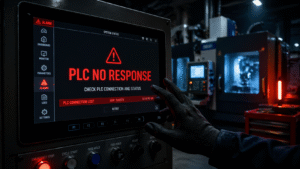
Field Emergency: HMI Frozen or “PLC No Response”?
The Electrician’s 3-Minute Rapid Troubleshooting SOP
In the high-stakes world of industrial automation, a frozen HMI (Human-Machine Interface) or a dreaded “PLC No Response” error can bring an entire production line to a grinding halt. When the pressure is on and every second of downtime costs money, you don’t need guesswork—you need a systematic approach.
This 3-minute Standard Operating Procedure (SOP) is designed for electricians and maintenance technicians to identify the root cause of communication failures between the HMI and the PLC (Programmable Logic Controller) instantly. Whether it’s a sudden data refresh lag or a total system lockout, follow this professional diagnostic flow to restore your industrial network.
Why HMI/PLC Communication Fails
- Physical Layer Issues: Damaged cables, loose RJ45 connectors, or faulty ports.
- Network Logic Errors: IP address conflicts or incorrect subnet masks.
- Environmental Factors: Electromagnetic interference (EMI) from VFDs or aging hardware.
By mastering this rapid SOP, you transition from “guessing” to “solving,” ensuring your facility maintains peak operational efficiency with minimal disruption.
⏳ Minute 1: Look, Don’t Touch – Diagnosing the Physical Layer
When your screen freezes or throws a “PLC No Response” error, your first instinct might be to reboot the whole panel. Don’t do it. The first 60 seconds of our HMI/PLC 3-minute troubleshooting SOP are strictly for visual inspection. Before touching a single wire, let the hardware tell you exactly what is going wrong.
1 Check the Ethernet Port LEDs (Link / Tx / Rx)
Grab a flashlight and look directly at the communication ports on both the back of the HMI and the PLC rack.
- Link LED (Solid Green): Your physical connection is established. If this light is off, you are looking at a severed cable, an unplugged RJ45 connector, or a dead switch port.
- Tx/Rx LEDs (Flashing): Data packets are actively moving. If these lights are completely dark or stuck on solid without blinking, your communication protocol is hung up at the port level.
2 Inspect the PLC Bus Fault Indicators
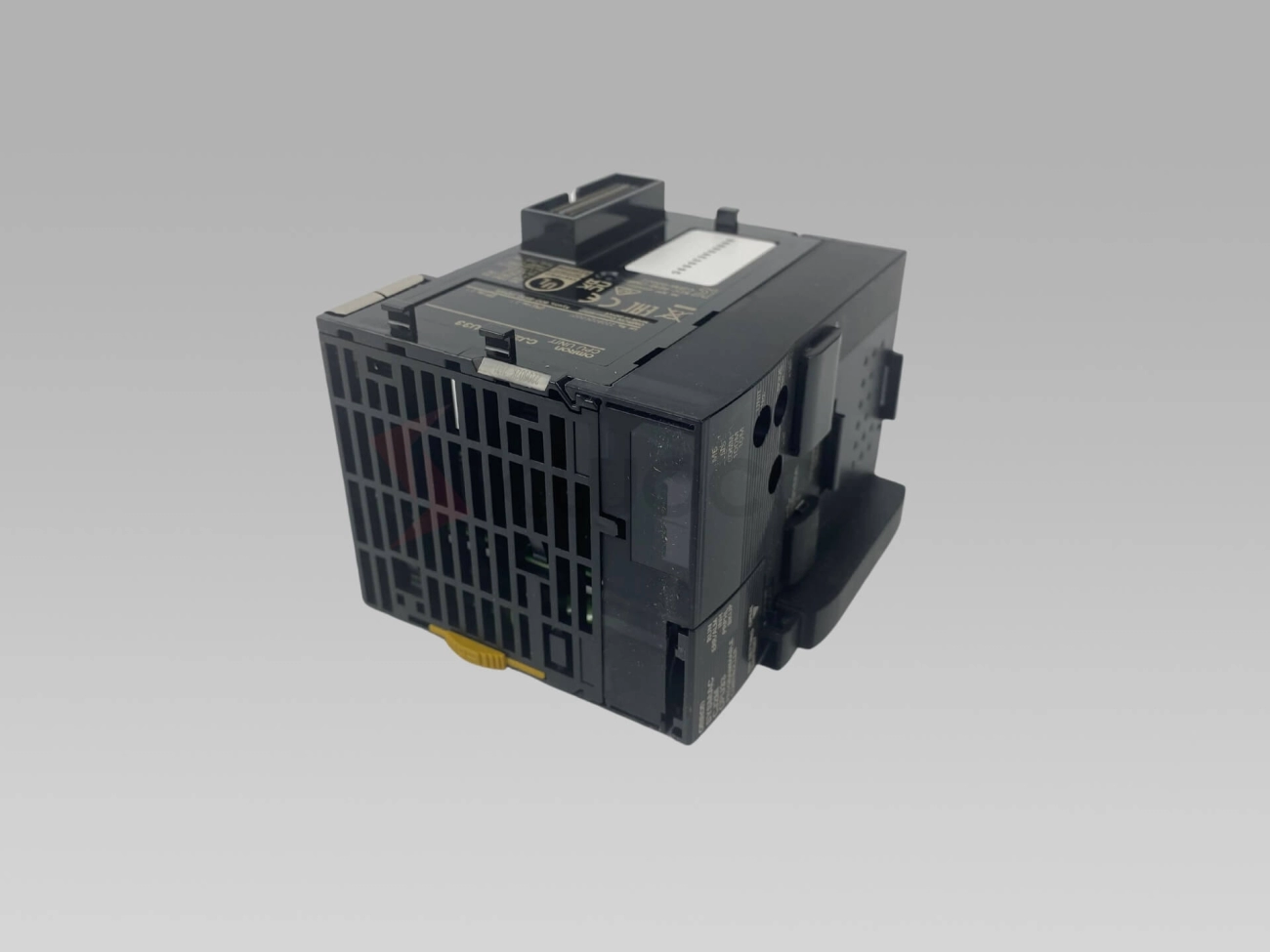
Next, scan the front of the PLC CPU module. Red warning lights are your immediate targets here.
- BF (Bus Fault) or SF (System Fault): A solid or flashing red light indicates a network topology drop, a node failure, or a hardware fault—not just a simple screen glitch.
- Whether your control panel runs on domestic hardware or you rely on global Siemens automation parts to keep your production lines moving, these standard indicator lights provide an instant, undeniable baseline of your physical layer’s health.
⏳ Minute 2 Identifying “Invisible Killers” at the Logic Layer
If the physical lights are flashing but the screen still shows “PLC No Response,” the issue is likely buried in the network logic. This is where I move from visual inspection to digital interrogation.
1 Run a Two-Way Ping Test
Communication is a two-way street. I don’t just check if the PLC is “alive”; I check if the HMI can actually see it.
- HMI Diagnostics: Most industrial panels have a hidden system menu. I use this to ping the PLC’s IP address directly from the HMI hardware.
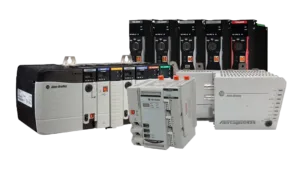
- Laptop Verification: Connect your laptop to the same switch. Ping both the HMI and the PLC. If you are troubleshooting Allen-Bradley controllers, ensure the RSLinx or communication path isn’t being blocked by a local firewall or a mismatched subnet mask.
- Timeout Check: If the ping response time is over 100ms, your network is congested or a cable is failing.
2 Flush Out the “Mole” (IP Conflicts)
IP conflicts are the most common “invisible” cause of intermittent HMI freezes. A technician might have plugged a new device into the factory floor with a duplicate IP, causing the HMI to lose its connection to the PLC randomly.
- The Isolation Test: Disconnect the PLC from the network and try to ping its IP address from your laptop. If you still get a “Reply,” you have a duplicate IP on the network.
- Gateway Issues: Ensure the HMI and PLC are on the same subnet. I’ve seen many cases where a Proface PFXGP4601TAD touch screen fails to communicate simply because a technician changed the gateway settings during a routine update.
- ARP Table Clear: Sometimes, simply power-cycling the network switch is enough to clear the ARP cache and resolve routing “ghosts.”
⏳ Minute 3 Troubleshoot Field “Gremlins” (Environment & Hardware Degradation)
If you have made it to the third minute of this HMI/PLC 3-minute troubleshooting SOP and the system is still unresponsive, you are likely dealing with physical degradation or environmental noise. I always look for these hidden culprits when the software and basic hardware checks pass.
1 Wiggle the Connectors and Drag Chain Cables
Machine vibration is notorious for backing out poorly seated plugs. Give those RJ45, Profinet, or serial connectors a firm wiggle to ensure they are locked in.
- Check the drag chains: Constant flexing causes internal micro-breaks in the copper. The cable jacket might look perfectly fine on the outside, but the broken strands inside will drop data packets intermittently as the machine moves.
- Inspect the terminals: If you are running a Siemens S7-1200 PLC or a similar controller, verify that the communication modules are seated tightly and the terminal blocks haven’t vibrated loose over months of operation.
2 Hunt Down “Invisible” EMI Interference
Electromagnetic interference (EMI) is the silent killer of industrial networks. It causes random HMI freezes and dropped PLC connections that seem to happen for absolutely no reason.
- Cable routing: Look inside the cabinet and along the machine frame. Did someone route low-voltage communication cables right next to high-power motor leads? Always maintain proper physical separation between power and control wires.
- VFD noise: Check your variable frequency drives. An improperly grounded Allen-Bradley PowerFlex 525 AC Drive or a missing motor cable shield can flood your network with severe electrical noise.
- Shield termination: Verify that your communication cable shields are securely terminated to the ground bus bar. A floating shield acts like an antenna, pulling interference straight into your PLC network.
🧠 The Golden Rule for HMI/PLC Troubleshooting
I always tell my crew to memorize a simple mantra when dealing with a frozen screen or a dropped connection. If you want to master this HMI/PLC 3-minute troubleshooting SOP, just remember L.P.C.: Look, Ping, Cable.
- Look (Minute 1): Keep your hands in your pockets. Check the indicator lights on your HMI and your Siemens automation parts first. The hardware usually tells you exactly what is wrong before you even open a laptop.
- Ping (Minute 2): Test the logic. Run a quick two-way ping to catch IP conflicts or network drops hiding in the background.
- Cable (Minute 3): Get physical. Wiggle the loose connectors, check the drag chains, and rule out any invisible EMI interference messing with your communication signals.
Stick to this strict 3-minute routine. It stops you from chasing ghosts, keeps the downtime to an absolute minimum, and gets the production line running again without the headache.


 by
by